Configure an MS SQL Server
To allow MIKE OPERATIONS to connect to MS SQL Server, the following changes must be made to the Microsoft SQL Server configuration of the SQL Server to contain MIKE OPERATIONS databases. - Allow SQL Server Authentication - Allow remote connections - Enable TCP/IP and specify TCP port
Allow SQL Server Authentication
As login using Windows credentials is not supported by the Database Manager Utility, it is recommended to use the sa user for maintenance of the MIKE OPERATIONS databases.
To connect using the sa user, change the Server Authentication to allow both SQL Server and Windows Authentication.
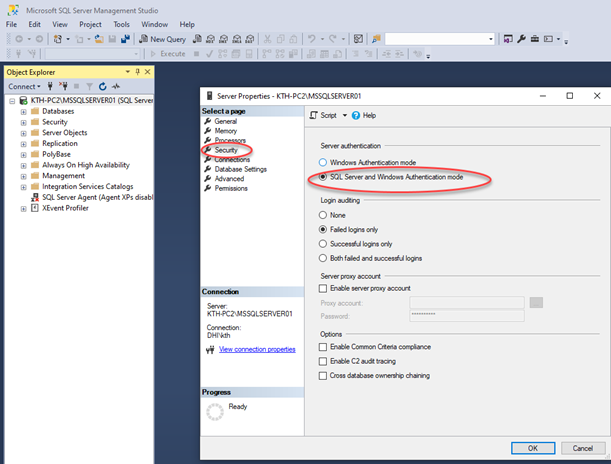
Allow remote connections
In SQL Server Management Studio, make sure that remote connections are enabled.
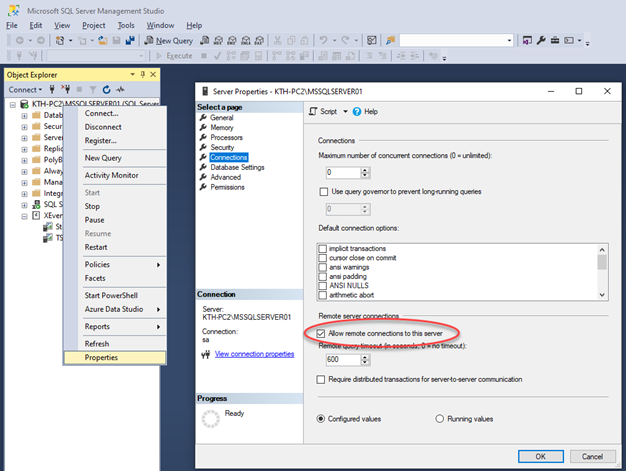
Enable TCP/IP and specify TCP port
Connection from MIKE OPERATIONS require a TCP port.
Start SQL Server Configuration Manager as an administrator. If a shortcut is not available, SQL Server Configuration Manager can be found in C:\Windows\System32\.
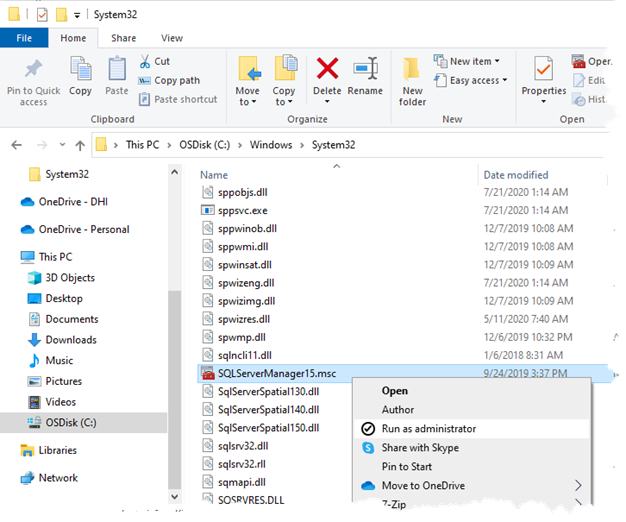
In SQL Server Configuration Management, select the protocols node for the server to connect to and make sure that TCP/IP is enabled for the server.
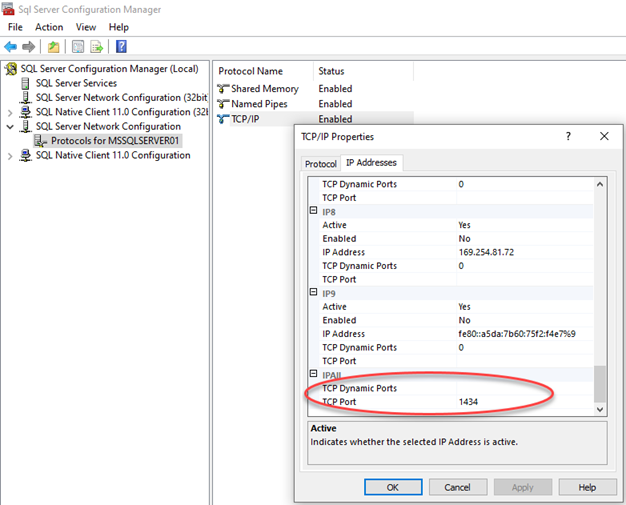
A port for accessing TCP/IP must be specified. Select the IP Addresses tab page and scroll down to the last category IPAll.
Clear the TCP Dynamic Ports property and specify the TCP Port.
Below, port 1434 is used.
After changing the settings of MS SQL Server, restart the server from SQL Server Management Studio.