Deployment of WEB APIs and Virtual Machines in Azure
This chapter describes how to configure a virtual network on Azure hosting the MIKE OPERATIONS Web APIs in an App Service, together with one virtual machine for running models. Unlike the deployment options in Azure Database PostgreSQL, this architecture does not allow access to the database from outside the network.
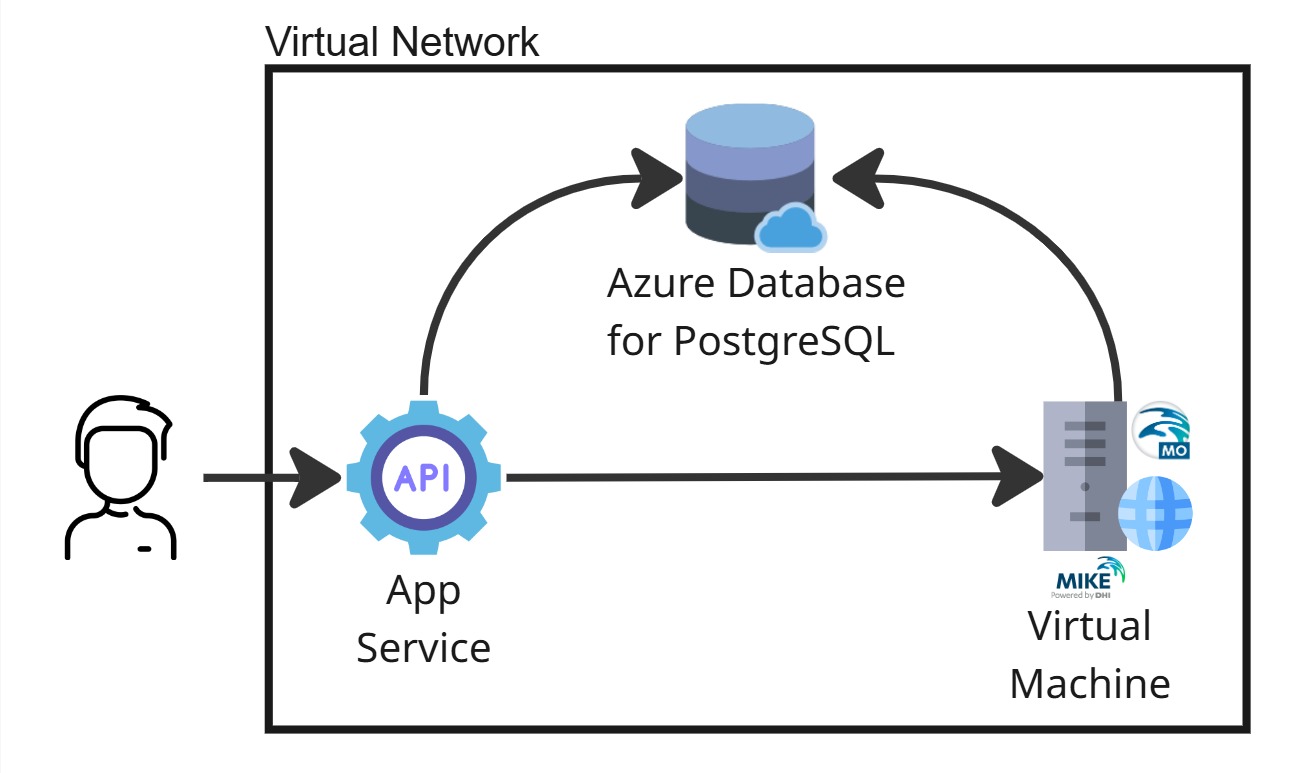
Before you start
Required access
| Requirement | Needed for |
|---|---|
| Azure subscription with Contributor | Steps 1–7 and 9 |
| Owner, User Access Administrator, or Key Vault Data Access Administrator | Step 9 only — creating the Key Vault role assignment |
Container registry credentials for dhiacrdev.azurecr.io |
Step 7 — provided by DHI |
| DHI Internet license credentials | Step 5 — License Manager configuration |
Plan the Key Vault permission ahead of time
Contributor cannot create role assignments, even on a vault where you hold Key Vault Administrator. If nobody on the deployment team holds one of the three roles above, request Key Vault Data Access Administrator scoped to the vault before starting. It is narrow — it permits only the management of Key Vault data-plane role assignments — and it removes a hard dependency in the middle of the deployment.
What gets created
| Step | Resource |
|---|---|
| 1 | Virtual network |
| 2 | Network security group |
| 3 | Subnet, delegated to PostgreSQL |
| 4 | Subnet, for the VM and App Service |
| 6 | Virtual machine (run machine) |
| 7 | Azure Database for PostgreSQL Flexible Server |
| 8 | App Service hosting the Web APIs |
| 9 | Key Vault holding the connection string |
| 10 | Health check and verification |
All resources must share one region
The virtual network, Key Vault, database server and App Service must all be in the same region. Key Vault service endpoints (Step 8) are regional: a cross-region subnet rule never matches, and Key Vault traffic silently falls back to the public path where it is rejected by the firewall.
Conventions used below
Bold marks a button or menu item to click. Italic marks the name of a blade, tab, field or option.
1. Create a Virtual Network
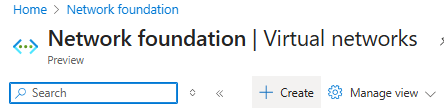
In Azure, create a new Virtual network.
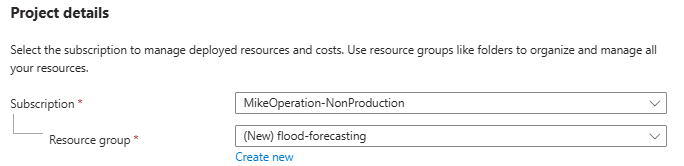
Select the subscription that will carry the cost and define a resource group that will hold all required resources.
Name your virtual network and define the region where it will be hosted.

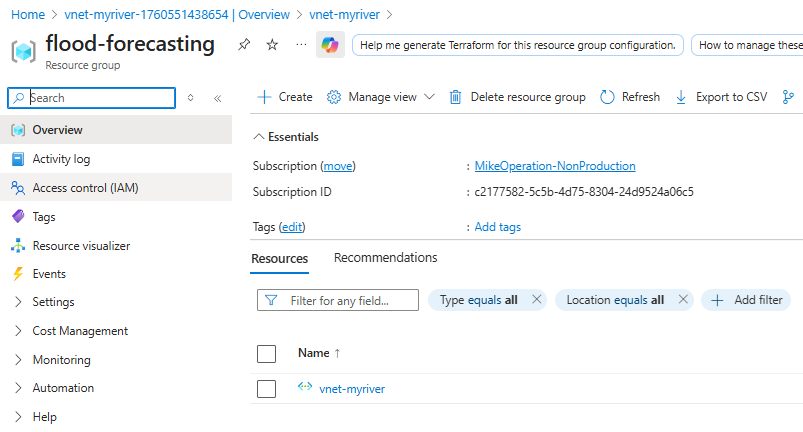
Follow the different steps by clicking Next and finish with Create. A virtual network is now visible in your resource group.
2. Create a Network security group
In Azure, create a new Network security group.
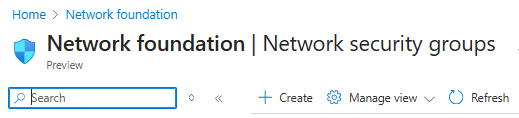
Select the same resource group and region, and give it a name.
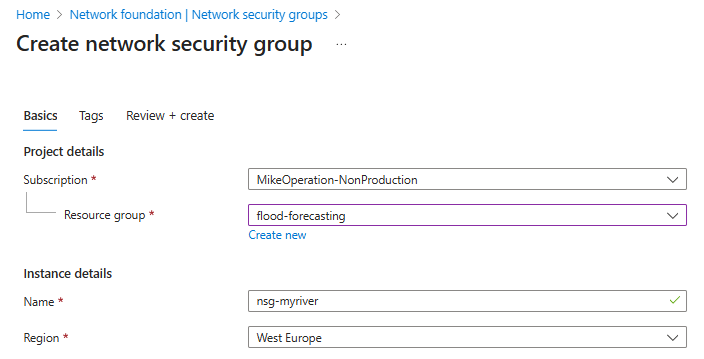
Click Review + Create, then Create. A new network security group is created in your resource group.
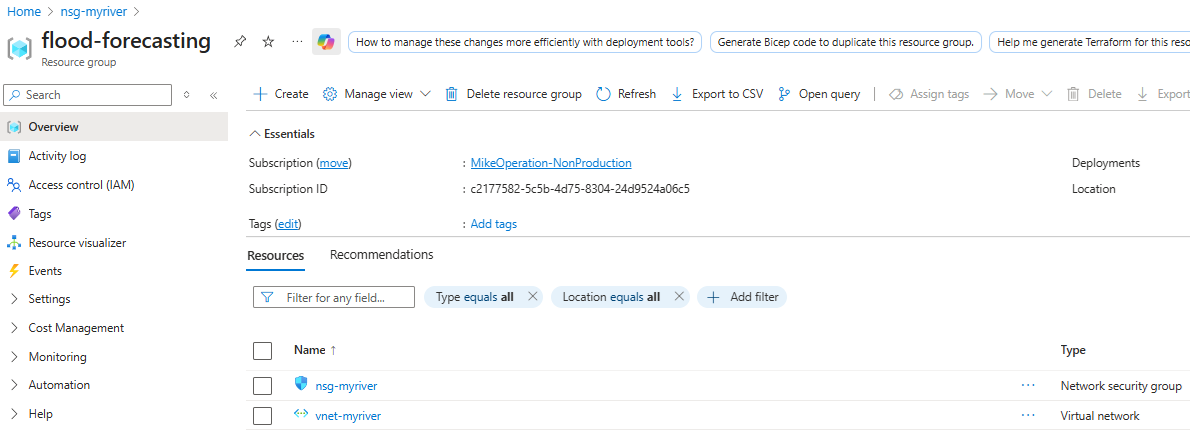
3. Add a subnet for the PostgreSQL database
We will create a sub network to handle the PostgreSQL Server.
Click on your virtual network, navigate to the Subnets page and click + Subnet.
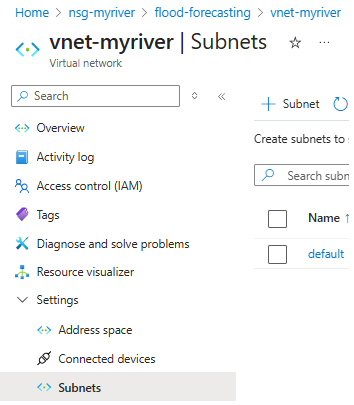
Give it a name.
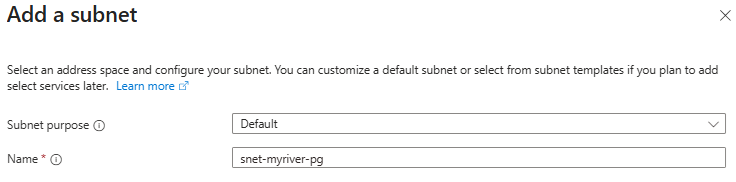
Set the Size to /28 (16 addresses).

Select the network security group.
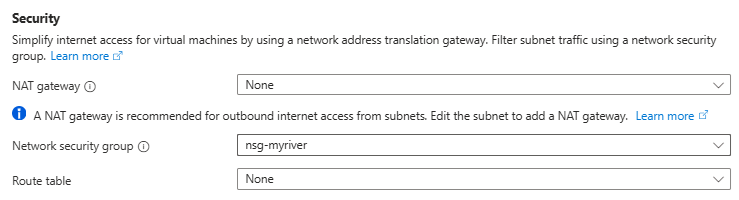
Set Delegate subnet to a service to Microsoft.DBforPostgreSQL/flexibleServers and click Add.

The subnet now shows in the list.

4. Add a subnet for the Virtual Machine
Create a new sub network for the virtual machine that will be used as run machine, on which MIKE OPERATIONS and the modelling software will be installed.
This subnet is for the virtual machine's network interface only. The App Service cannot share it — see the callout below.

Set the Size to /28 (16 addresses).
Add a security group as in Step 3. Keep everything else as default and create. The subnet now shows in the list.

This subnet cannot be used by the App Service
App Service regional VNet integration requires the subnet to be delegated to Microsoft.Web/serverFarms, and a delegated subnet cannot contain virtual machine NICs. The two cannot share one subnet.
As a result the App Service uses the default subnet created automatically with the virtual network in Step 1 — that is the subnet referenced by VNet integration in Step 7 and by the service endpoint and firewall rule in Step 8.
A practical consequence: once the VM NIC exists in this subnet, it will not appear in the App Service integration dropdown. That is expected, not a fault.
If you prefer a dedicated App Service subnet
Instead of using default, create a fourth subnet delegated to Microsoft.Web/serverFarms, sized /26 or larger — Azure reserves 5 addresses, and the App Service plan needs room to scale out, so a /28 leaves only 11 usable and will constrain you later. Substitute its name wherever default appears in Steps 7 and 8.
5. Create and configure the virtual machine
This machine will be the run machine on which the models will run and MIKE OPERATIONS will be installed.
Create the virtual machine
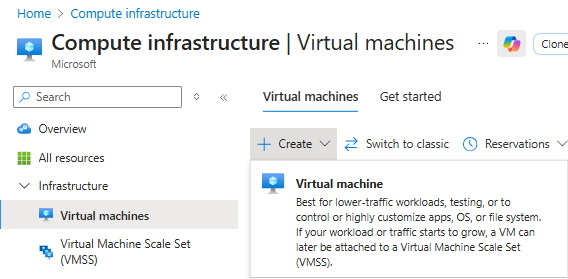
In Azure, go to Virtual Machine and click Create.
Basic tab
Select the resource group and region, and give the machine a name (max 15 characters). Keep this machine name for the Job Configuration.
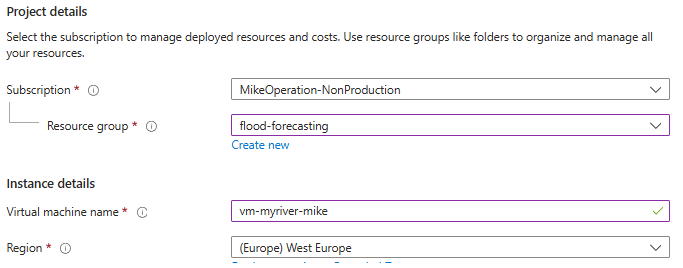
Select a supported image (see release notes) and define the user name and password.
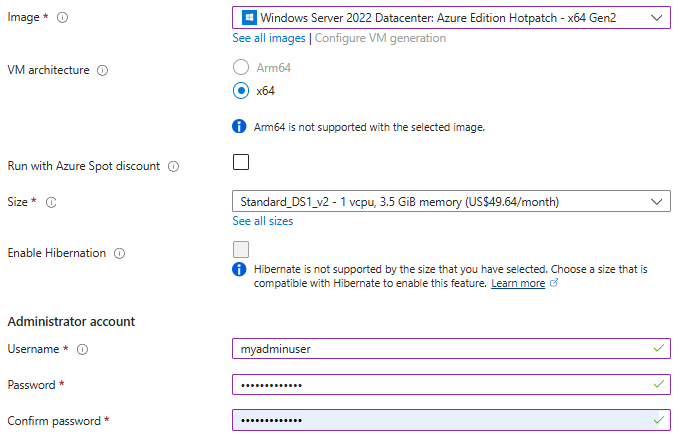
Set Public inbound ports to None.

Networking tab
Select the subnet that was created for the machine in Step 4. Keep NIC Network Security Group set to None.
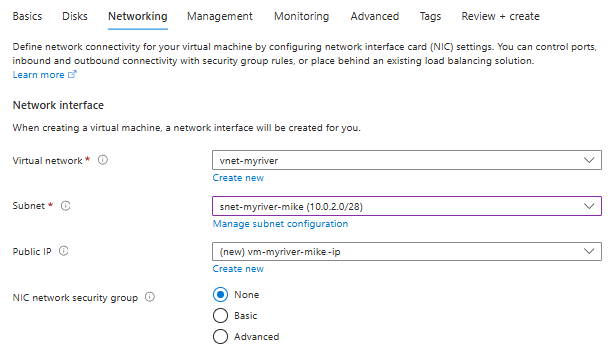
Click Review + create and then Create.
You should have the following resources in your resource group.
Add Remote Desktop Inbound port rules
Remote Desktop
Once the machine is created, go to the resource and open Network settings.
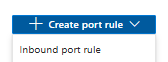
Click + Create port rule and select Inbound port rule.
Set up an RDP inbound rule with your IP.
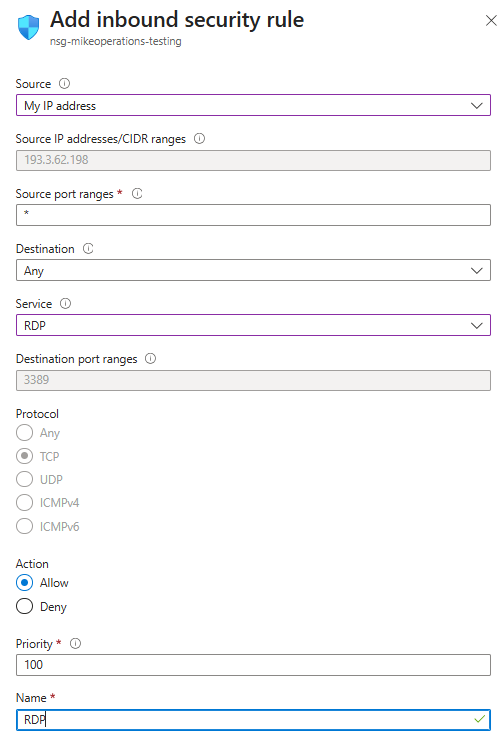
Job Service
Add an inbound rule allowing the Web APIs to reach the MIKE OPERATIONS Job Service on port 8089.
First find the address range of the App Service's integration subnet, which is the rule's source:
az network vnet subnet show -g <resource-group> \
  --vnet-name <vnet-name> -n default --query addressPrefix -o tsv
Then click + Create port rule → Inbound port rule and complete the form:
| Field | Value |
|---|---|
| Source | IP Addresses |
| Source IP addresses/CIDR ranges | the integration subnet's prefix, e.g. 10.0.0.0/24 |
| Source port ranges | * |
| Destination | Any |
| Service | Custom |
| Destination port ranges | 8089 |
| Protocol | TCP (Any also works, but TCP is more specific) |
| Action | Allow |
| Priority | 120 |
| Name | MOJobService |
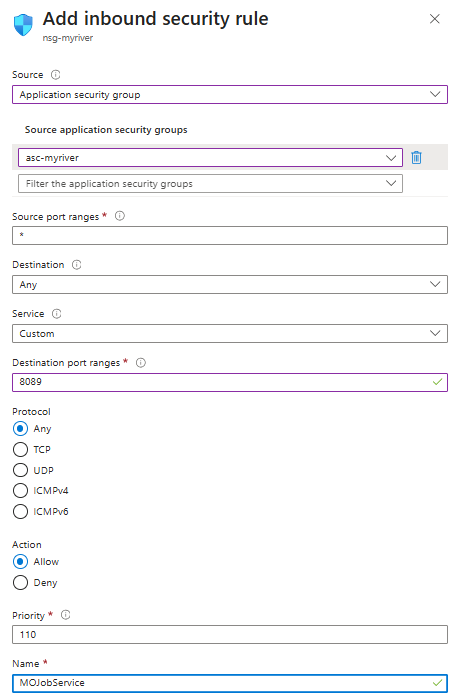
The screenshot is out of date
The screenshot shows the rule configured with an Application security group as its source. That does not work: application security group membership is assigned to the network interfaces of virtual machines, and App Service regional VNet integration creates no network interface in your subscription — so the App Service cannot be a member of one, and a rule sourced from an application security group will never match its traffic.
Use IP Addresses with the integration subnet's prefix, as in the table above. A broader alternative is the VirtualNetwork service tag, which allows any resource in the virtual network — simpler, but less specific.
The source range must match the App Service's integration subnet
If the source range does not cover the subnet the App Service is integrated with, requests issued through the Web APIs never reach MIKE OPERATIONS on the run machine. Verify the two match rather than copying the example prefix:
az webapp show -n <app-name> -g <resource-group> \
  --query virtualNetworkSubnetId -o tsv

az network vnet subnet show -g <resource-group> \
  --vnet-name <vnet-name> -n default --query addressPrefix -o tsv
This rule is only half of what job execution needs. The Job Host address must also be set inside MIKE Workbench — see Configure Job below.
Why this rule matters even though traffic already flows
The default AllowVnetInBound rule permits all traffic between resources in the same virtual network, so the Job Service is reachable from the App Service subnet before you add anything. This rule is therefore not what makes the deployment work today.
It is worth adding anyway. It records why port 8089 is open, and it keeps the Job Service reachable if a rule denying intra-VNet traffic is added later — a change that would otherwise break job execution with no obvious cause.
If an application security group already exists
Earlier versions of this guide created an application security group and used it as the source of this rule. If your deployment has one, the rule must be replaced before the group can be removed — Azure refuses to delete an application security group while any security rule references it:
az network nsg rule delete -g <resource-group> \
  --nsg-name <nsg-name> -n <rule-name>

az network asg delete -g <resource-group> -n <asg-name>
Install MIKE OPERATIONS
Log into the virtual machine, install MIKE OPERATIONS following the Installation guide, and configure the DHI License Manager using your Internet license credentials.
PostgreSQL is still required locally
Even though we use an Azure PostgreSQL service, PostgreSQL should be installed on the virtual machine because the PgTools are required.
Configure Job
For the run machine to run jobs triggered from the Web APIs, two things must be configured — the inbound port rule above, and the Job Host address inside MIKE Workbench. Both are required; either one alone leaves job execution broken. See also the Job Service guidelines.
Find the run machine's private IP address
az vm list-ip-addresses -g <resource-group> -n <vm-name> \
  --query "[].virtualMachine.network.privateIpAddresses" -o tsv
This address is in the range of the subnet created in Step 4 — for example 10.0.2.4.
Set the Job Host address in MIKE Workbench
On the run machine, open MIKE Workbench and go to Provider Configuration. For each Job Host row, click Configure and enter the run machine's private IP address in the Host field, then click Validate and OK.

The first Job Host row is mandatory
If the Host field of the first Job Host row is left empty, Web API calls fall back to localhost:8089. The call is then made from inside the App Service container rather than to the run machine, nothing is listening there, and every job request fails.
Leaving this blank is a common cause of job failures that look like a networking or firewall problem — the inbound rule on port 8089 is correct, the subnet routing is correct, and the request never leaves the container.
Restart in a specific order afterwards
Changes to the Job Host configuration and to the NSG rule are cached by each layer. Nothing picks up the new values until all three are restarted, in this order:
- MIKE Workbench — writes and reloads the provider configuration
- DHI Solutions Job Manager Service — the Windows service on the run machine, restarted from Services (
services.msc) - The App Service hosting the Web APIs — see Step 7
Restarting out of order, or skipping a layer, leaves the old Job Host address in effect and the symptom unchanged. If job calls still fail after a configuration change, verify the restart order before investigating anything else.
The App Service restart is best done as Stop, wait, then Start rather than Restart — see Step 9.
6. Create a database server
To create and configure an Azure Database for PostgreSQL, follow the steps in this chapter, making sure to follow Case 2.
Record the following for Step 8:
| Value | Example |
|---|---|
| Database server name | psql-mybeach.postgres.database.azure.com |
| Database name | mike_operations |
| Port | 5432 |
| Administrator user name | postgres |
| Administrator password | mypassword |
The user name recorded here must match the username= field of the connection string written in Step 8. On Flexible Server the administrator account is whatever was chosen at server creation — commonly postgres, but not guaranteed. Confirm it rather than assuming:
az postgres flexible-server show -g <resource-group> -n <server-name> \
  --query "{admin:administratorLogin, version:version}" -o table
Database names are case-sensitive
A database created as a quoted identifier — CREATE DATABASE "MIKE_OPERATIONS" — will not be found by a connection string containing database=mike_operations. The resulting error is misleading:
Npgsql.PostgresException (0x80004005): 3D000: database "mike_operations" does not exist
It reads as a missing database rather than a casing mismatch. Confirm the exact name before writing the connection string:
az postgres flexible-server db list -g <resource-group> -s <server-name> -o table
Prefer creating databases with lowercase, unquoted names to avoid the problem entirely.
Consider avoiding a stored password
The administrator password ends up in plaintext inside the Key Vault secret. Microsoft Entra authentication for Flexible Server lets the App Service authenticate with its managed identity instead, so no password is stored anywhere. If you do use a password, treat it as a shared credential and rotate it if it is ever pasted into a chat, ticket or shell history:
az postgres flexible-server update -g <resource-group> -n <server-name> \
  --admin-password '<new-password>'
7. Create an Azure App Service (WebAPIs)
The Web APIs will be hosted in an Azure App Service. Select Web App in the Create menu. No database is required.
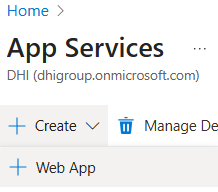
Basic tab
Select the resource group and the correct region, and give a name to the instance.
Container tab
The App Service will be created based on a Linux container. Skip over the Database tab and set the container source to Other container registries. Select Private. Make sure to select Sidecar support.
Then provide the following:
| Field | Value |
|---|---|
| Registry server URL | dhiacrdev.azurecr.io |
| Username | provided by DHI |
| Password | provided by DHI |
| Image and tag | mikeoperations/web-apis:latest |
| Port | 80 |
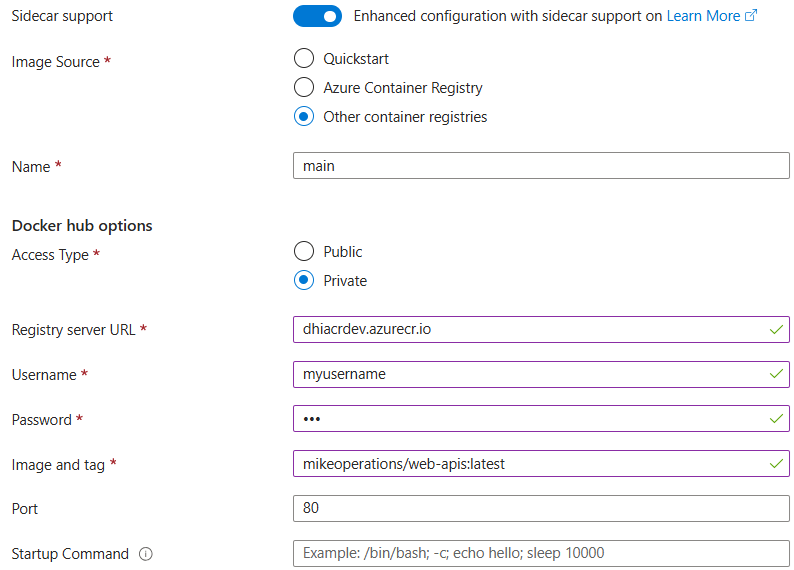
The port must match the image
If the declared port differs from the port the image listens on, the image pulls and starts successfully but the warmup probe never receives a response — and the platform reports a container startup failure with no application error to explain it. If you deploy a different image later, set WEBSITES_PORT to its listening port.
Networking tab
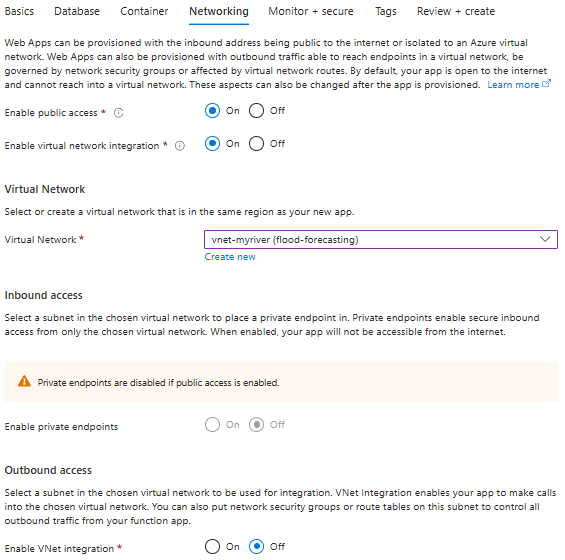
Set Enable public access to On for the Web APIs to be reachable. If the APIs will only be called by a known set of devices, set it to Off and configure private endpoints instead.
The App Service must communicate with the PostgreSQL database and virtual machine on the virtual network, so set Enable virtual network integration to On, select the virtual network, and select the default subnet.
Why default and not the Step 4 subnet
The subnet created in Step 4 holds the virtual machine's NIC and therefore cannot be delegated to App Service. The default subnet created with the virtual network in Step 1 is a /24 with no delegation, so it is available and large enough. Azure delegates it to Microsoft.Web/serverFarms when integration is enabled.
Note that traffic to the PostgreSQL and VM subnets still works: they are peers within the same virtual network.
Network security group on the integration subnet (optional)
Steps 3 and 4 attach the network security group to the database and VM subnets. The default subnet has none, and none is required for this deployment to work.
If your organisation requires every subnet to be associated with an NSG, create a separate NSG for the integration subnet rather than reusing the one from Steps 2 and 3. The App Service and the virtual machine have very different traffic profiles, and sharing one NSG means a later change written for the VM can break the App Service with no obvious connection between the two.
Two things to know if you do attach one:
- Only outbound rules affect the App Service. Inbound rules on an integration subnet are not applied to it.
- With outbound routing enabled, the app needs outbound access to 443 (Key Vault, container registry, Azure DNS), 5432 (PostgreSQL) and 8089 (Job Service on the run machine). A restrictive outbound rule that omits any of these will reproduce the failures in Step 9.
If more than one App Service shares the subnet, the NSG applies to all of them.
VNet integration alone is not enough for Key Vault
By default only private (RFC1918) destinations are routed through the virtual network. Key Vault is reached over its public endpoint, so without outbound routing the request leaves through the App Service platform's shared outbound IP pool and is rejected by the Key Vault firewall. Outbound routing is enabled after creation — see Enable outbound routing through the virtual network below.
Then create the WebApp.
Add environment variables
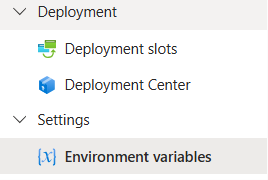
Once the WebApp is created, environment variables should be added.
KEY_VAULT_NAME
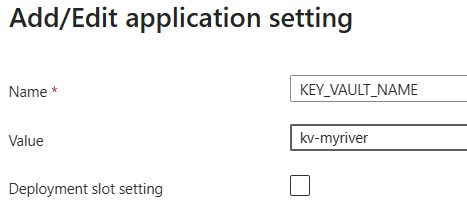
Create an environment variable called KEY_VAULT_NAME holding the name of the key vault.
SECRET_NAME
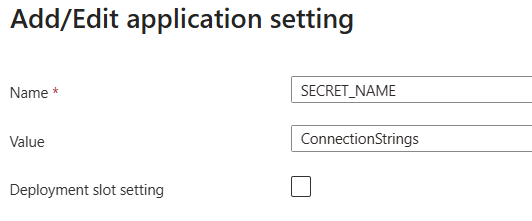
Create an environment variable called SECRET_NAME holding the value ConnectionStrings. This is used to retrieve the database connection string from the Key Vault.
This must match the secret name exactly
A misspelling produces a SecretNotFound (404) at startup — or, if the vault firewall has not yet been configured, a Forbidden (403) that masks the naming problem until the network path is fixed.
The application echoes both values to stdout at startup, printing the vault name on one line and the secret name on the next. That is the quickest way to confirm what the app is actually requesting.
Configure Identity
Go to the Identity tab.
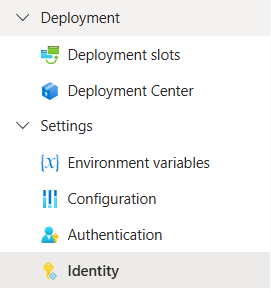
Switch on System assigned.
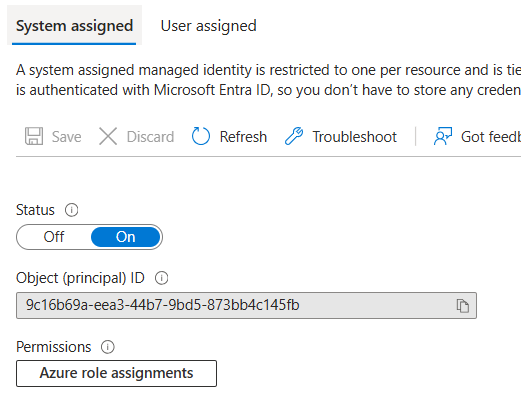
Record the Object ID
The Object (principal) ID shown after enabling the identity is required for the role assignment in Step 8. Note that the portal's IAM list displays the application ID while role assignments are made against the object ID — selecting the App Service by name from the managed identity picker resolves this correctly.
Networking
Go to the Networking tab.
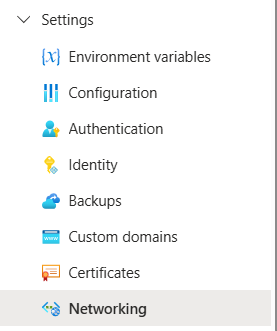
Select Outbound traffic configuration.

Add the virtual network you created and select the subnet.
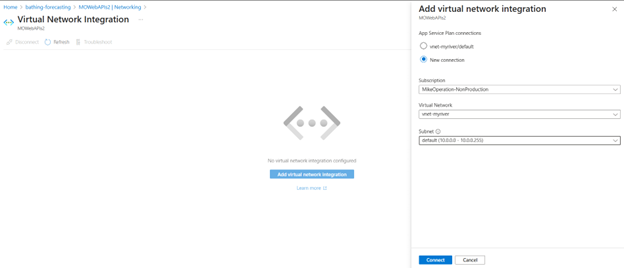
Enable outbound routing through the virtual network
On the Virtual Network Integration page, under Application routing, tick Outbound internet traffic (labelled Route All in older portal builds) and save.
Leave the three Configuration routing boxes — Container image pull, Content storage and Backup/restore — unticked. Only application traffic needs to traverse the virtual network.
Verify:
az webapp show -n <app-name> -g <resource-group> \
  --query "{routeAll:siteConfig.vnetRouteAllEnabled, subnet:virtualNetworkSubnetId}" -o json
routeAll must be true, and subnet must end with the subnet created in Step 4. If it is false or null:
az webapp config set -n <app-name> -g <resource-group> --vnet-route-all-enabled true
A legacy app setting can override this silently
WEBSITE_VNET_ROUTE_ALL with value 0 overrides the site property above, and is a common cause of a ticked checkbox that has no effect. Check for it and delete it:
az webapp config appsettings list -n <app-name> -g <resource-group> \
  --query "[?contains(name,'VNET')]" -o table

az webapp config appsettings delete -n <app-name> -g <resource-group> \
  --setting-names WEBSITE_VNET_ROUTE_ALL
8. Create Azure Key Vault
Create a new Key Vault.
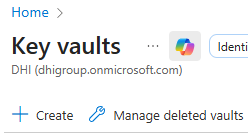
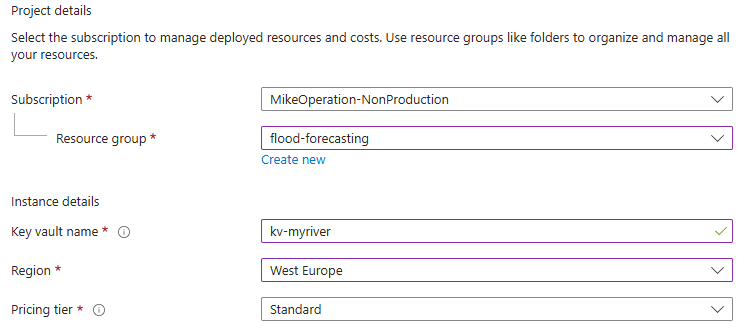
Basics tab
Select the resource group and region, and give it a name.
Access configuration tab
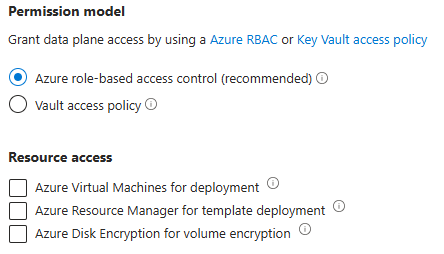
Use the RBAC permission model
Select Azure role-based access control (the current default). The rest of this chapter assumes RBAC. If the vault uses the legacy Vault access policy model instead, role assignments in Access control (IAM) have no effect on secret access and you must add an access policy granting Get on secrets. You can confirm which model is active from the error detail if something fails: ForbiddenByRbac indicates RBAC.
Enable the Key Vault service endpoint on the WebApp subnet
Before the Key Vault firewall can recognise traffic from the App Service by subnet, the subnet must expose the Key Vault service endpoint.
Go to your virtual network → Subnets → select the subnet used by the WebApp → under Service endpoints, add Microsoft.KeyVault → Save.
az network vnet subnet update -g <resource-group> \
  --vnet-name <vnet-name> --name <subnet-name> \
  --service-endpoints Microsoft.KeyVault
Why this is a separate step
The Add existing virtual network dialog in the Key Vault networking blade below offers to enable this endpoint for you. That prompt is easy to miss, and if it is dismissed the vault rule saves successfully but never matches any traffic — producing a firewall rejection that looks like a missing rule. Setting the endpoint explicitly first removes the ambiguity.
Networking tab
Pick the option Selected networks.
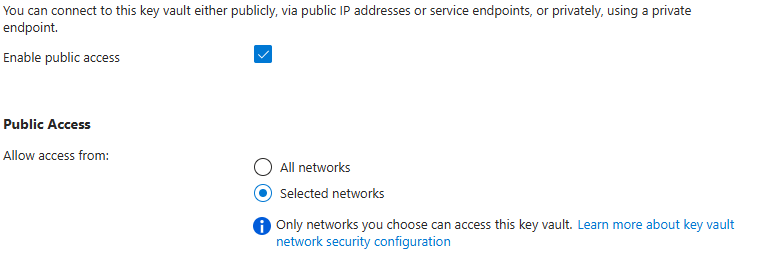
Click Add a Virtual Network and Add an existing virtual network.

In the Add networks panel, select your virtual network and add the subnet that you picked when creating your WebApp.
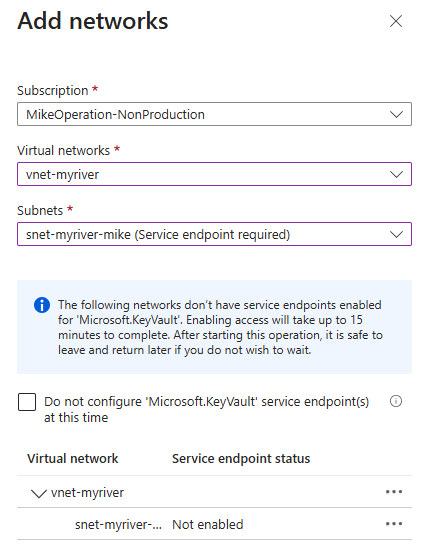
Then click Review + create and Create.
Verify that both halves of the network configuration are present. A subnet rule without the service endpoint, and a service endpoint without the subnet rule, fail identically:
az network vnet subnet show -g <resource-group> --vnet-name <vnet-name> -n <subnet-name> \
  --query "{endpoints:serviceEndpoints, state:provisioningState}"

az keyvault show -n <vault-name> --query "properties.networkAcls" -o json
The subnet must list Microsoft.KeyVault with provisioningState: Succeeded, and the vault must list the subnet's full resource ID under virtualNetworkRules.
Add Key Vault Administrator
Once the Key Vault is created, go to Access control (IAM) and add yourself as a Key Vault Administrator.
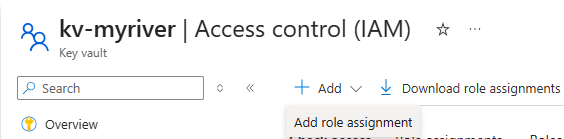
This is what allows you to create and read the secret during setup. It is separate from the role granted to the App Service in Access control below.
Add Networking rule
In the Networking tab, add a firewall rule with your own IP address.

Secrets tab
Go to Secrets.
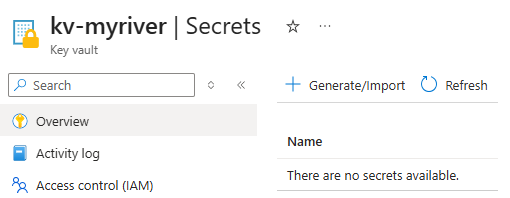
Create secret
Click Generate/Import to create a new secret.
Name the secret ConnectionStrings and set the value to a connection string built from the values recorded in Step 6:
host=psql-myriver.postgres.database.azure.com;port=5432;database=mike_operations;dbFlavour=PostgreSQL;workspace=workspace1;username=postgres;password=mypassword;Ssl Mode=Require
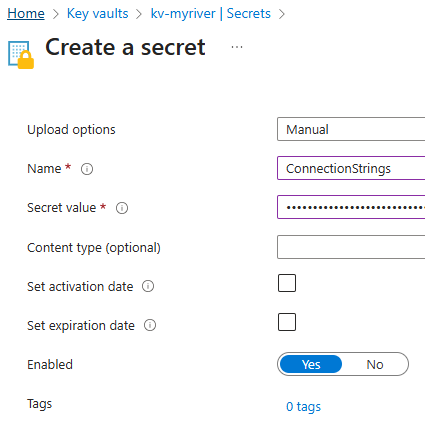
Check the database name and trailing whitespace
Verify the database= value against the actual database name, including case — see Step 6. Also ensure no trailing whitespace or newline is included: the portal does not trim the value, and a stray newline in the password segment produces an authentication failure that looks nothing like a formatting problem.
Secrets are versioned, not edited
To change a value later, open the secret and click + New Version. The new version becomes current immediately and previous versions remain available for rollback. The application reads the secret by name without a version qualifier, so no configuration change is needed — but the App Service must be restarted, because the secret is fetched once during startup.
Access control
Click Access control (IAM) to give the WebApp access to the secret.
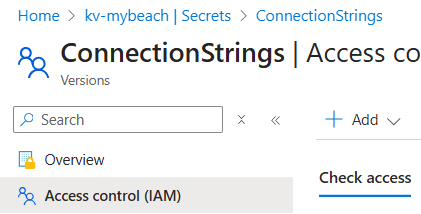
Click Add → Add role assignment and select the role Key Vault Secrets User. This grants read-only access to secret values, which is all the Web APIs require.

In Members, select Managed identity.
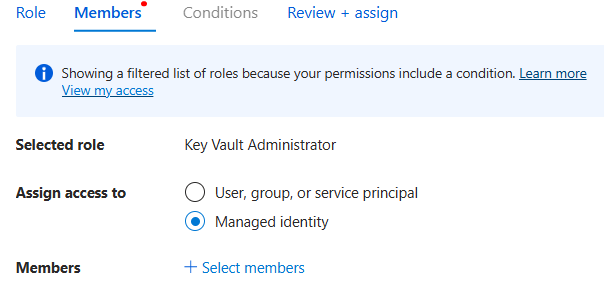
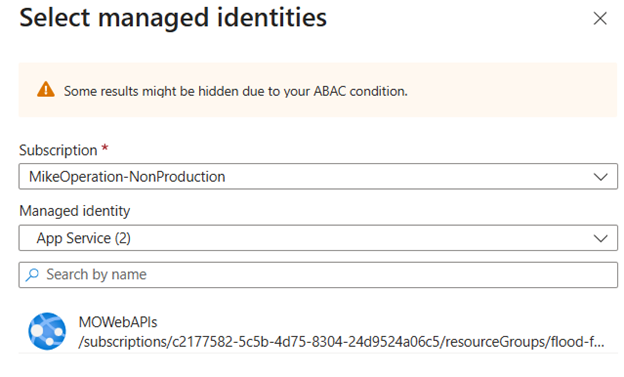
Select the App Service created in the previous step.
Contributor is not sufficient
Contributor — and every other management-plane role — allows managing the vault resource (networking, tags, deletion) but grants no access to secret values. On an RBAC-enabled vault, secrets/getSecret/action is granted only by Key Vault Secrets User, Key Vault Secrets Officer, or Key Vault Administrator. An App Service listed under Contributor on the vault will still fail with:
innererror: ForbiddenByRbac
Assignment: (not found)
Wait for propagation before restarting
Allow up to 10 minutes after creating the assignment. The Key Vault data plane caches RBAC decisions, and an earlier restart produces an identical 403 that is purely propagation lag.
Verify the assignment:
OID=$(az webapp identity show -n <app-name> -g <resource-group> --query principalId -o tsv)

az role assignment list --assignee "$OID" \
  --scope $(az keyvault show -n <vault-name> --query id -o tsv) \
  --include-inherited -o table
9. Test WebAPIs
Set up health check
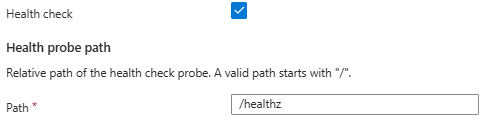
Go to Health check.
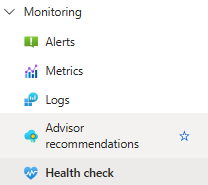
Set the Path to /healthz.
If there is a problem with your WebApp deployment, a warning will be shown at the top.

If this is the case, look at the deployment log under:
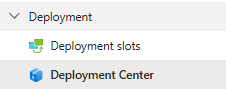
A failing health check is a symptom, not the fault
If the container exits during startup, nothing is listening to answer the probe, and Healthy 0 / Degraded 1 simply restates the startup failure. Diagnose the startup failure first. On a single-instance plan, consider unticking Health check while debugging — an hour of unhealthy pings triggers instance replacement, which adds start attempts and log noise.
Enable application logging
Go to Monitoring → App Service logs, set Application logging to File System and Level to Verbose, then Save.
On Linux custom containers there is no separate "Docker container logging" toggle; container stdout and stderr are captured regardless, but this ensures nothing is dropped.
Read the correct log file
Two different log files are produced, and the distinction is critical:
| File | Contents |
|---|---|
*_docker.log |
Platform provisioning log — image pull, volume mounts, warmup probe, State: Starting/Stopping lines. No application output. |
*_default_docker.log |
Your container's stdout and stderr — the actual application exception |
The link on the health check warning leads to the platform log, which is why a configuration failure often appears only as an opaque container exit. Always read *_default_docker.log.
az webapp log download -n <app-name> -g <resource-group> --log-file logs.zip
rm -rf logs && unzip -o -q logs.zip -d logs
tail -n 60 "$(ls -t logs/LogFiles/*default_docker.log | head -1)"
Kudu alternatives, which work even while the app container is crash-looping:
| URL | Returns |
|---|---|
https://<app-name>.scm.azurewebsites.net/api/logs/docker |
JSON index with direct links |
https://<app-name>.scm.azurewebsites.net/api/logs/docker/zip |
All logs as a zip |
https://<app-name>.scm.azurewebsites.net/api/vfs/LogFiles/ |
Browse /home/LogFiles |
SSH and the Kudu console will not help
Both attach to your container, so neither is available while the container is not running. The FTP/FTPS paths shown on the App Service logs page will not work until deployment credentials are set.
Live streaming is available under Monitoring → Log stream, but a container that dies in around ten seconds gives a very short window. Start the stream first, then Stop and Start the app from Overview. A full stop is better than Restart: it also clears the "Site is blocked due to multiple, consecutive cold start failures" state, which a restart fights against.
Check timestamps before trusting a log
File logs append, and Log stream may replay buffered content. Always compare the timestamp on the newest exception against the time of your last change — stale errors are easily mistaken for current ones and send you chasing an already-fixed problem.
Known limitation: configuration failures are reported as exit code 139
The Web APIs fetch the connection string from Key Vault early in Main (via ProductionConnectionStringProvider.GetConnectionStringAsync) and the call is not wrapped in exception handling. Any failure — vault firewall, missing role assignment, wrong secret name, unreachable database — throws out of Main, the process terminates in under ten seconds, and the platform records only:
LastError: ContainerStartupFailure
LastErrorDetails: Container exited with exit code 139 during startup after 10.7s.
                  Please inspect your container logs for more details.
This is misleading in two ways:
- Exit code 139 conventionally means SIGSEGV, so the message suggests a native crash, a corrupt image, or an architecture mismatch — none of which are involved.
- After three consecutive failures the site is blocked for a minute, which looks like a platform fault rather than a configuration one.
The actual exception is always present in *_default_docker.log. When a deployment fails at startup, go there first and disregard the exit code entirely — it carries no diagnostic information for this application.
Expect to fix one fault at a time
Each fault masks the ones after it. The vault firewall rejects the request before authorization is evaluated; authorization fails before the secret name is resolved; the secret must resolve before the database is contacted. Restart and re-read the container log between each fix rather than trying to diagnose everything from a single failure.
Error signature reference
| Symptom | Cause | Fix |
|---|---|---|
exit code 139, no application output in the platform log |
Unhandled .NET exception during startup. Not a segfault, and not OOM (that is 137). | Read *_default_docker.log |
403 with innererror: ForbiddenByFirewall and a public Client address |
Key Vault traffic leaving via the platform's public outbound pool | Outbound routing, service endpoint and vault rule |
403 with innererror: ForbiddenByRbac, Assignment: (not found) |
Managed identity has no data-plane role on the vault | Assign Key Vault Secrets User; wait 10 minutes |
404 SecretNotFound |
SECRET_NAME does not match the secret name |
SECRET_NAME |
Npgsql 3D000: database "..." does not exist |
Database name case or spelling mismatch | Step 6 |
Npgsql 28P01: password authentication failed |
Wrong password, or trailing whitespace in the secret value | Create a new secret version |
Image pull unauthorized: authentication required |
Missing or incorrect DOCKER_REGISTRY_SERVER_USERNAME / _PASSWORD |
Re-set the registry credentials |
| Pull succeeds, warmup fails, no application output | Container port mismatch | Set WEBSITES_PORT to the port the image listens on (80 for mikeoperations/web-apis) |
Confirming the network path is fixed
Once outbound routing and the service endpoint are correct, the Key Vault response header reads
x-ms-keyvault-network-info: conn_type=Subnet;subnet=/subscriptions/.../subnets/<name>
instead of showing a public addr=. If you see conn_type=Subnet, the firewall layer is solved and any remaining 403 is an authorization problem, not a networking one.
Verify the configuration end to end
APP=<app-name>; RG=<resource-group>; VAULT=<vault-name>

# outbound routing and subnet binding
az webapp show -n "$APP" -g "$RG" \
  --query "{routeAll:siteConfig.vnetRouteAllEnabled, subnet:virtualNetworkSubnetId}" -o json

# the two settings the container reads at startup
az webapp config appsettings list -n "$APP" -g "$RG" \
  --query "[?name=='KEY_VAULT_NAME' || name=='SECRET_NAME']" -o table

# vault network rules
az keyvault show -n "$VAULT" --query "properties.networkAcls" -o json

# data-plane role for the app's identity
OID=$(az webapp identity show -n "$APP" -g "$RG" --query principalId -o tsv)
az role assignment list --assignee "$OID" \
  --scope $(az keyvault show -n "$VAULT" --query id -o tsv) \
  --include-inherited -o table

# databases actually present on the server
az postgres flexible-server db list -g "$RG" -s <server-name> -o table
Handling secrets safely from the shell
When setting a secret from a command line, read the value into a variable rather than passing it inline, so it does not persist in shell history or in a Cloud Shell profile:
read -rsp 'password: ' PW; echo

az keyvault secret set --vault-name <vault-name> --name ConnectionStrings \
  --value "host=...;database=...;username=postgres;password=${PW};Ssl Mode=Require" > /dev/null

unset PW
Multi-line pastes break this
A multi-line paste feeds the next line of the paste into read, silently capturing a command instead of the password. Run the read line on its own, wait for the prompt, paste, then press Enter. Confirm with echo "${#PW}", which prints only the length and not the value.